Keep the part that matters.

Crop image online

Upload your original image, then upload a separate transparent PNG, WebP or SVG to use as its mask. Fit the shape over your photo, inspect the transparent result and download.

PNG, JPG, WebP or SVG80 MiB · 24 MP max

Drop a file here, or choose one

PNG, JPG, WebP or SVG · 80 MiB · 24 MP max · SVG ≤ 5 MiB

Your preview

A little space for your image.

Choose a file to get started.

Preview fits the available space. The download uses the stated pixel dimensions.

Make it yours

Crop & mask

Transparent PNG / WebP or standalone SVG · SVG up to 5 MiB

Drag inside the frame to move it; drag a corner to resize. You can also enter exact pixel values below.

PNG and WebP keep transparency. JPG fills transparent pixels with the selected background. SVG input is rendered to pixels before cropping.

Used for JPG and resize padding.

Download image
Ready when you are.

Files stay on your device. No account needed.

How to crop an image with your own mask

Follow these steps, then check the preview before downloading.

  1. Choose your original PNG, JPG, WebP or standalone SVG image.
  2. Upload a separate transparent PNG, WebP or SVG mask, or choose a built-in shape. Move the crop frame, choose a fitting mode and optionally invert the mask.
  3. Apply the crop and inspect the result. Download PNG or WebP to keep transparency, or JPG with your chosen background.
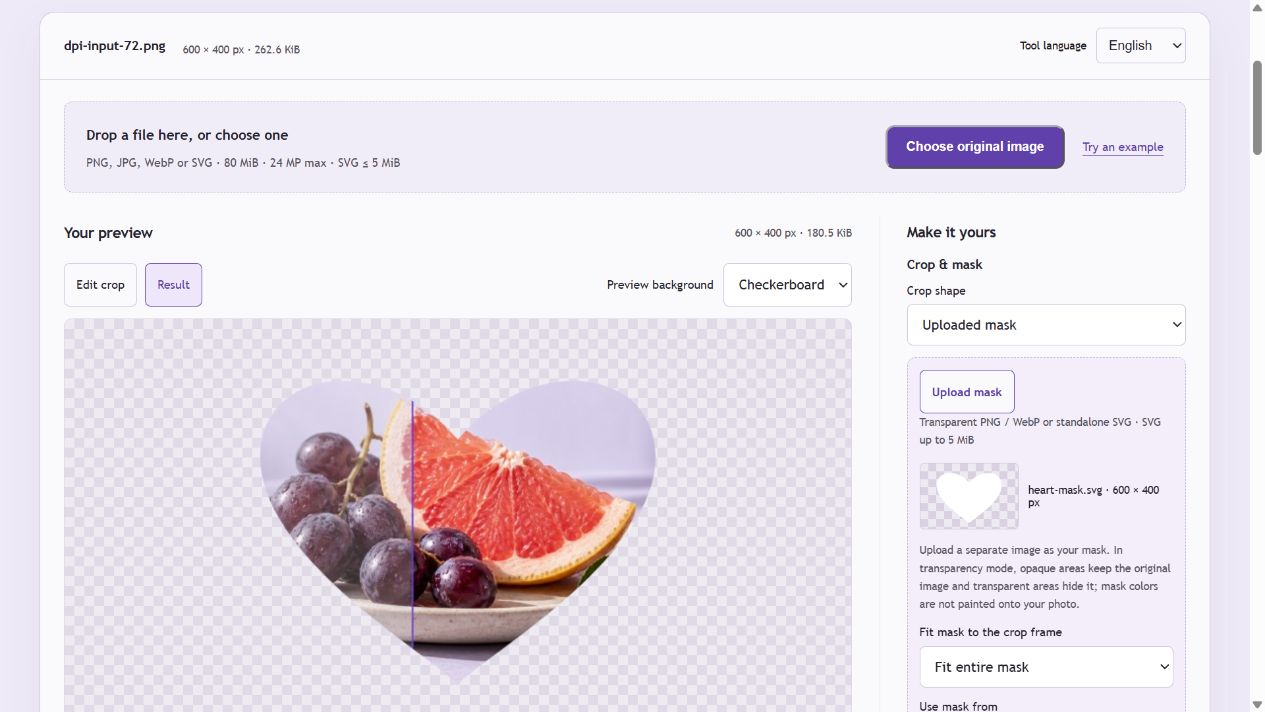
Actual PicEdita image cropper using the downloadable SVG heart mask on the 600 × 400 illustration sample. The checkerboard indicates transparent pixels.
Actual PicEdita image cropper using the downloadable SVG heart mask on the 600 × 400 illustration sample. The checkerboard indicates transparent pixels. Open the screenshot for a larger view.

Try the same files

Worked example: a transparent crop from an SVG mask

Choose the illustration as the original, upload the separate SVG heart mask, keep Transparency mode and Fit entire mask, then apply to the full 600 × 400 frame. PNG output keeps transparent areas around the heart.

Input and output for this example
PropertyBeforeAfter
Pixel dimensions600 × 400600 × 400
Alpha at top-left corner255 (opaque)0 (transparent)
Alpha at center255 (opaque)255 (opaque)
Center colorOriginal illustration RGBSame RGB values

Verification: inspect the output alpha channel and compare the fully covered center pixel with the original. Soft edges may contain partial alpha. SVG masks are rendered to pixels; the download is not an editable vector.

Example checked . Example files use PicEdita’s processing modules; screenshots show the browser workflow. Browser encoders may produce different bytes.

Use your own mask shape

The mask is a separate upload from the original image. Transparency mode keeps the photo where the mask is opaque, hides it where the mask is transparent and preserves soft edges. Mask colors are not painted onto the photo. Brightness mode uses white to keep, black to hide and gray for partial opacity. Fit the entire mask, fill and crop its edges, or stretch it to the frame; inversion reverses its coverage.

SVG input and image output

Standalone SVG originals and masks up to 5 MiB are rendered at their declared dimensions or viewBox size. Local paths, gradients and masks can render; scripts, animation, external stylesheets, HTML and external dependencies are rejected. Downloads are raster PNG, WebP or JPG, not editable SVG. Text appearance depends on available fonts.

Inspect the area and transparent edges

Move the crop frame or enter exact pixels. Arrow keys move by one pixel; Shift moves by 10. Checkerboard, light and dark preview backgrounds help inspect pale artwork and transparency, and are not added to PNG or WebP downloads. Trim transparent borders finds the original image’s nonzero-alpha bounds. Images and masks are limited to 80 MiB, 24 megapixels and 12,000 pixels per side; SVG has a lower 5 MiB limit.

Image cropping and mask questions

Can I upload my own transparent PNG or SVG as a mask?

Yes. Choose your original image first, then use Upload mask to select a separate transparent PNG, WebP or standalone SVG. The uploaded shape controls which parts of the original image remain visible. Mask colors do not replace your photo colors.

Can I crop an image without a white background?

Yes. Use PNG or WebP output to preserve original transparency and transparent areas outside a circle or rounded mask. The checkerboard is not included in the file. JPG uses the selected background color.

Does uploading an SVG keep it vector in the download?

No. This tool renders supported standalone SVGs to pixels before cropping. Its downloads are PNG, WebP or JPG. Keep the original SVG if you need editable vectors.

What does trimming transparent borders do?

It finds the smallest rectangle containing all visible pixels. It does not remove a white or colored background, and it does not remove empty holes inside the artwork. A fully transparent image has no visible area to trim.

Can I split the cropped image too?

Yes. Download the crop, then open the image splitter and choose the downloaded image. The splitter also has optional crop and shape controls for a single workflow.