Pixels, percentages and a clear preview
Choose an exact width and height for a website, presentation or social post. Percentage mode scales both dimensions together. The preview shows the full output, including any padding or crop.
A better fit for your next idea.
Give your photo the dimensions it needs. Set pixels or a percentage, choose how it fits, and check the result before you download.
Drop a file here, or choose one
PNG, JPG or WebP · 80 MiB · 24 MP maxA little space for your image.
Choose a file to get started.Preview fits the available space. The download uses the stated pixel dimensions.
Follow these steps, then check the preview before downloading.
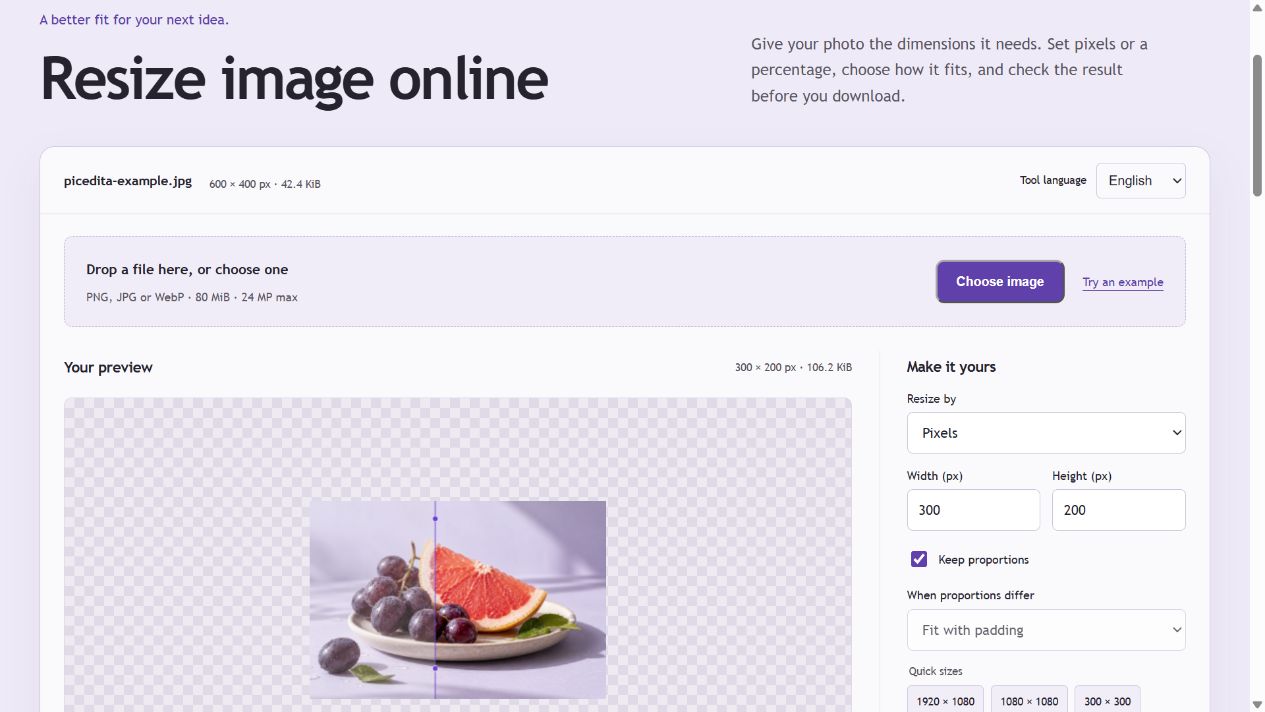
Choose an exact width and height for a website, presentation or social post. Percentage mode scales both dimensions together. The preview shows the full output, including any padding or crop.
With proportions locked, changing one dimension updates the other. Unlock them to choose fit with padding, a centered crop or stretch. JPG uses your chosen background behind transparent areas.
Making an image larger adds pixels through browser resampling; it cannot recover missing detail. Downloads are limited to 24 megapixels and 12,000 pixels per side.
Yes. Keep proportions locked, or unlock them and choose Fit with padding. A different target ratio needs padding if you want to preserve the whole image without stretching it.
Yes. Use a preset or enter your dimensions. Choose padding or crop to fill when the target shape differs from the original.
PNG and WebP can preserve transparent pixels. JPG has no alpha channel and uses the background color you select.